1. Search for the OneDrive application on your device, or click on the blue OneDrive icon in the taskbar
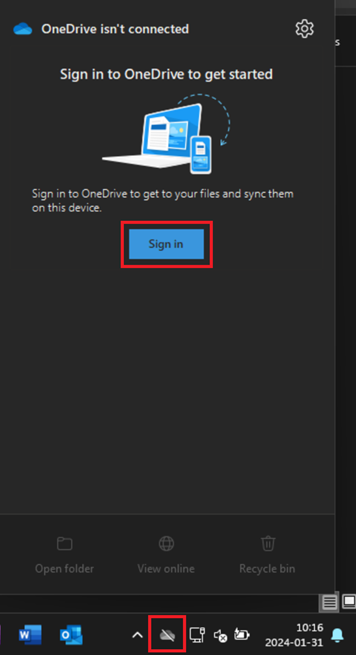 or
or
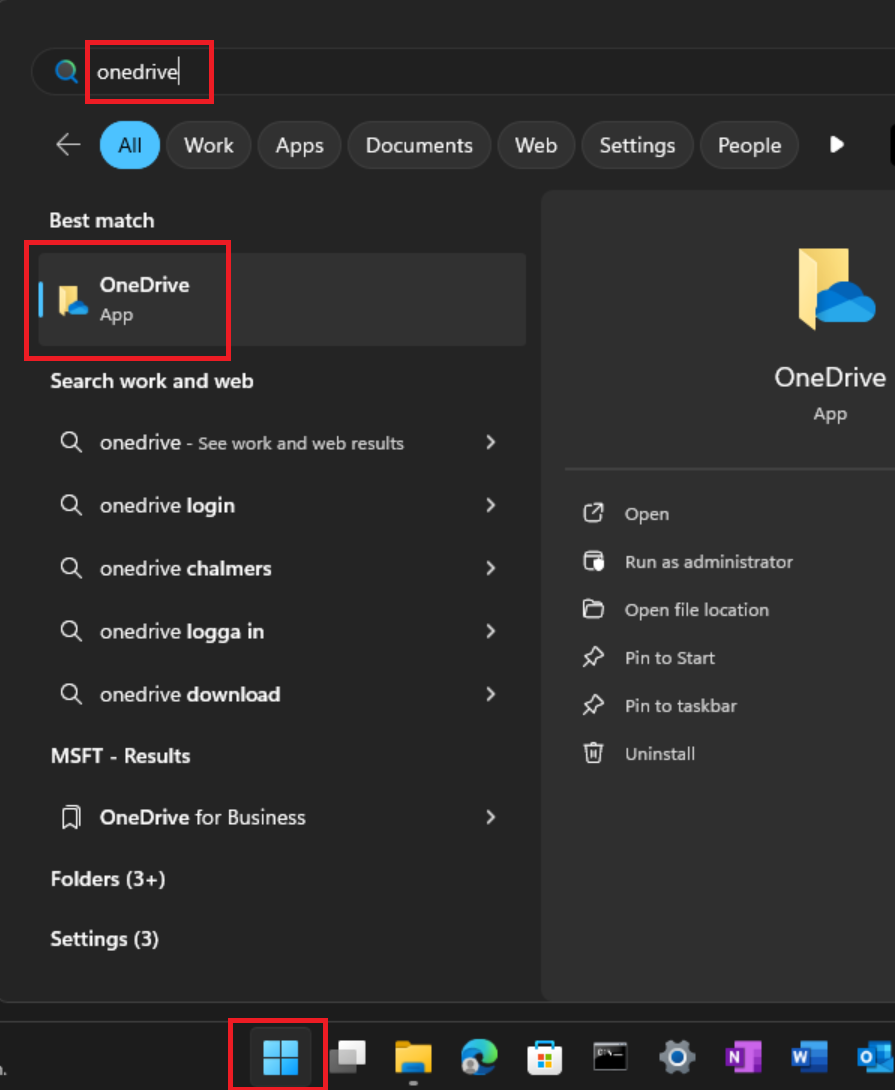
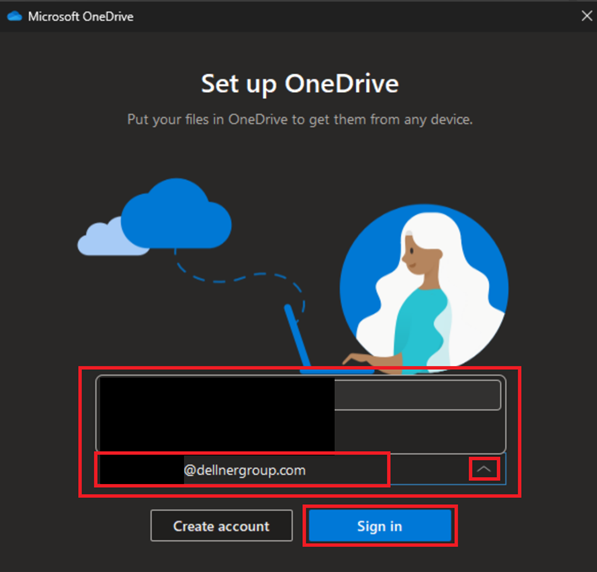
2. Make sure to select your new Dellner Group account which should have beend added in earlier setup guides (if not automatically selected try pressing the dropdown menu and select the correct account)
followed by 'Sign in'
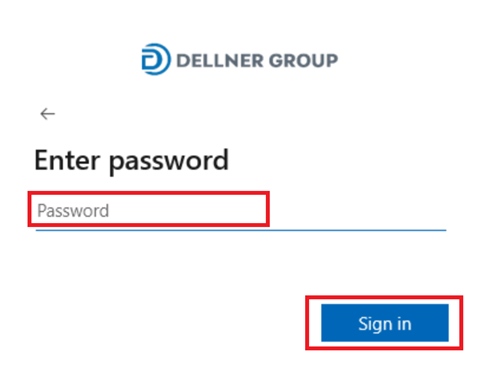
3. Type your password, followed by 'Sign in'
4. Confirm yourself with MFA (if required)
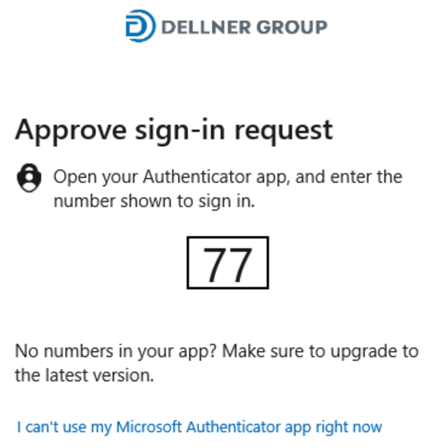
5. Wait for sign in to complete
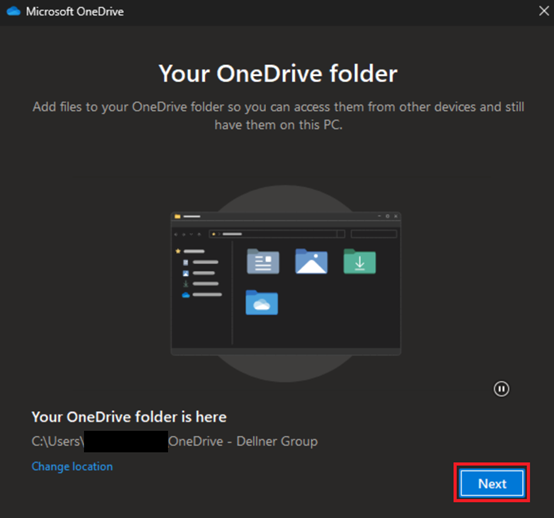
6. Next you can choose where you want to store the files for your Dellner Group account (by default the 'C:\Users\%username%\OneDrive - CompanyName' is selected, and probably the best option)
Proceed by clicking 'Next'
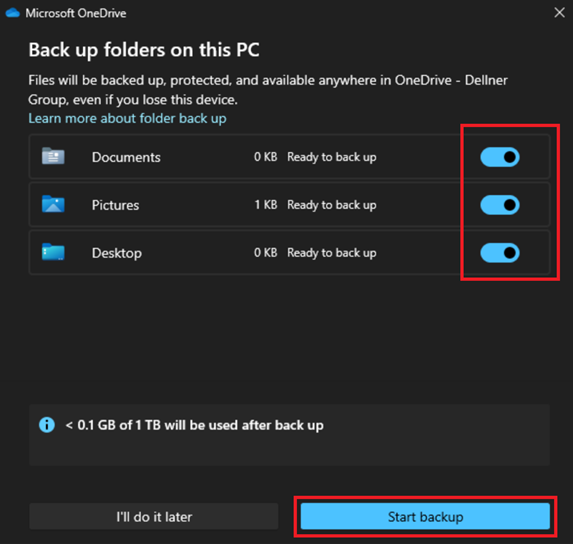
7. Choose which folders you want to backup to OneDrive, by default 'Documents', 'Pictures' and 'Desktop' is chosen
8. Setup is now complete, proceed by 'Next' a few times followed by 'Later' (if you are curious of features of OneDrive you can read the information provided on the pages inbetween 'Nexting')

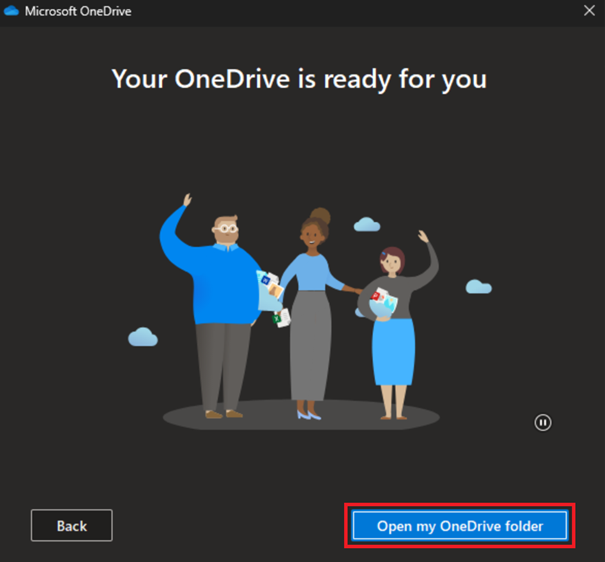
9. You can now open your OneDrive folder from here and back out from this setup guide
Once you have confirmed that all files have been migrated to your new Dellner Group account you should make sure to delete the 'Old' folder outlined in the 'pre migration' guide, this is done to save space on your device and to ensure that you don't continue to work in old versions of your files.
If you need assistant contact your local support.