1.# Cleanup of old outlook profiles
2.# Creation of a new DellnerGroup outlook profile
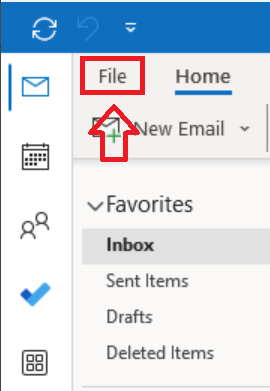
1.1 Open the Outlook desktop app and press 'File' in the top left corner
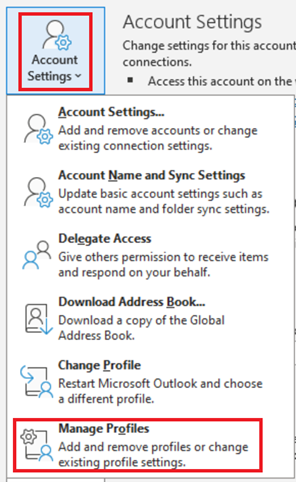
1.2 Press 'Account settings' in the middle of the screen, followed by 'Manage Profiles'
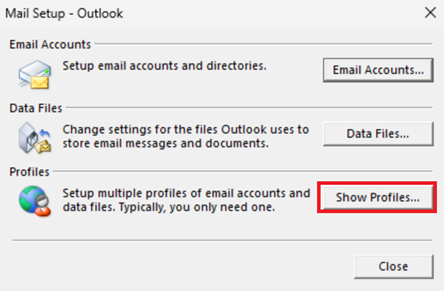
1.3 Press 'Show Profiles'
1.4 Select your existing profile/profiles and press 'Remove'
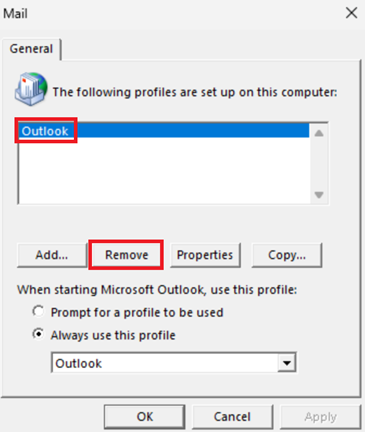
1.5 Confirm by pressing 'Yes'

1.6 Followed by 'Apply and 'OK'

Part 1 Of this guide is now complete, to continue configuring your new account in Outlook please proceed below.
Part 2. Below follows part 2
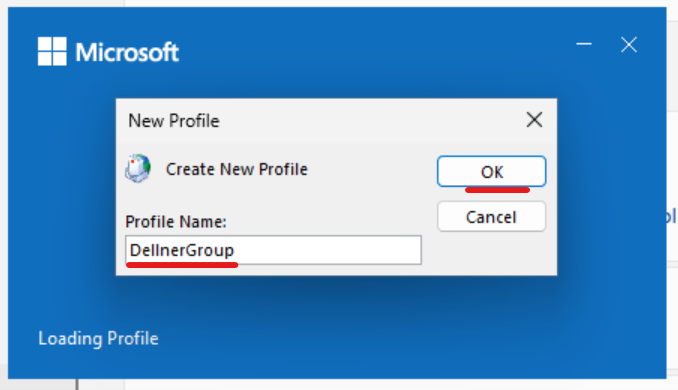
2.1 Start the Outlook app on your computer, then set a fitting profile name for your new account
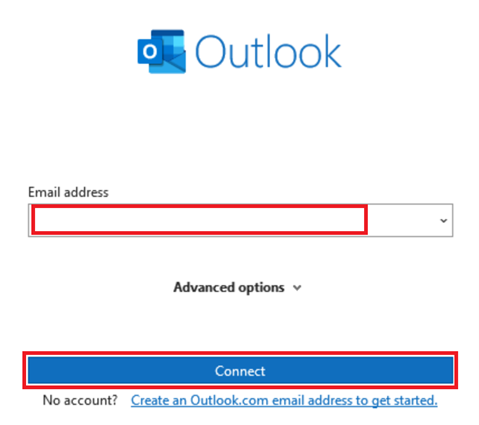
2.2 Choose your new account in the drop down list (if available), otherwise type in the Dellner Group username.
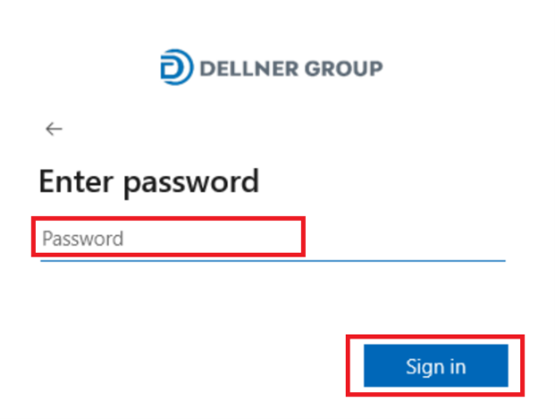
2.3 Type your password (if required), followed by 'Sign in'
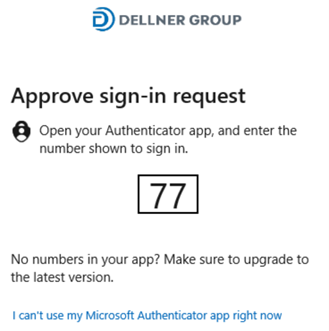
2.4 Verify your login with MFA if required (some offices may not require this).
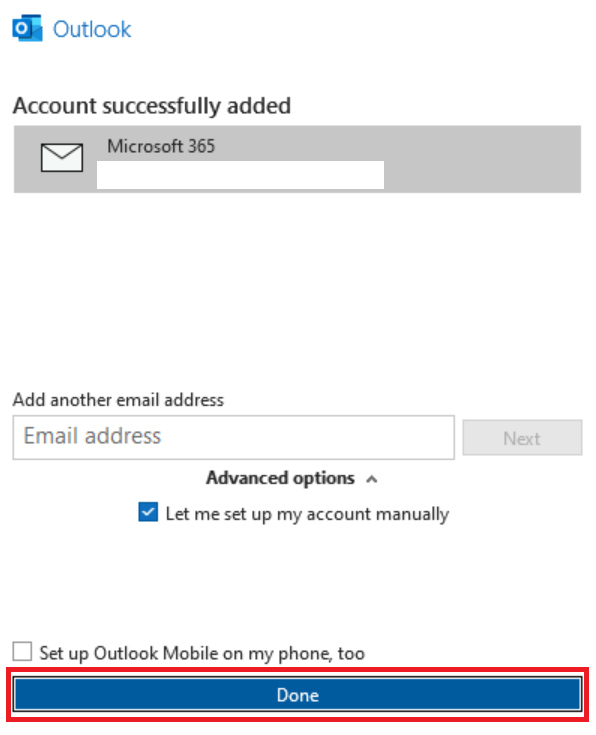
2.5 Complete the configuration by pressing 'Done'