1.# Adding the new DellnerGroup account to the iOS/Android device
2.# Removing the old account from the iOS/Android device
1.1 Open the Outlook app on your iOS or Android device

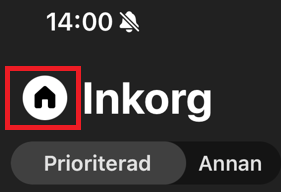
1.2 Press the 'Home' menu button in the top left corner
1.3 Followed by the mailbox with a blue '+' sign in the bottom left middle

1.4 Press 'Add new e-mail account'

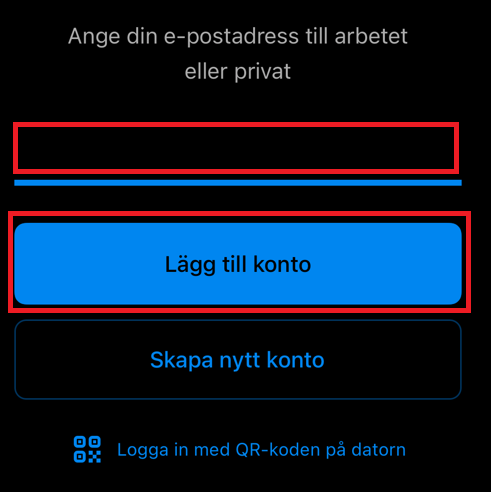
1.5 Type in your new login information (it might look a little different on an Android device)
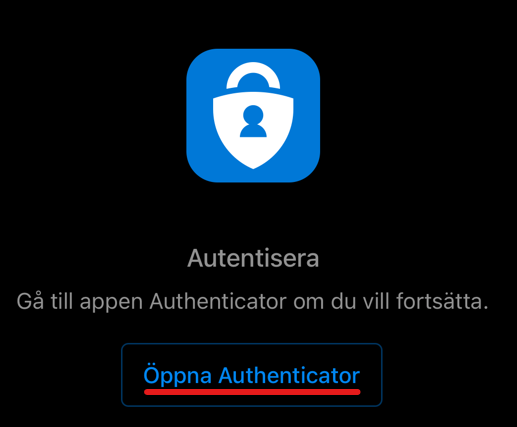
1.6 Press 'Open Authenticator' if it appears (if you have an Android device this might look different)
1.7 Type your password, followed by 'Sign in'
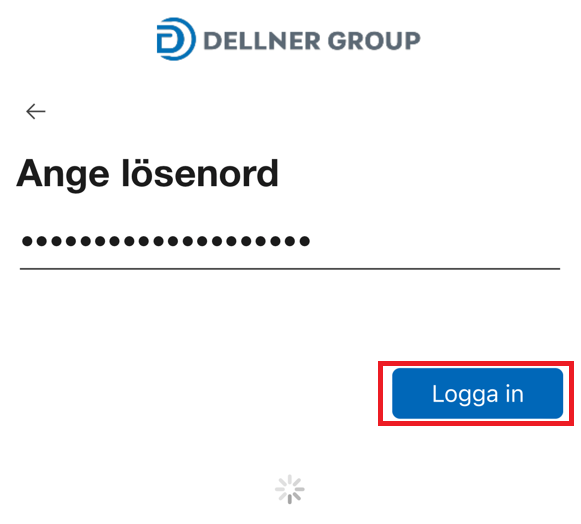
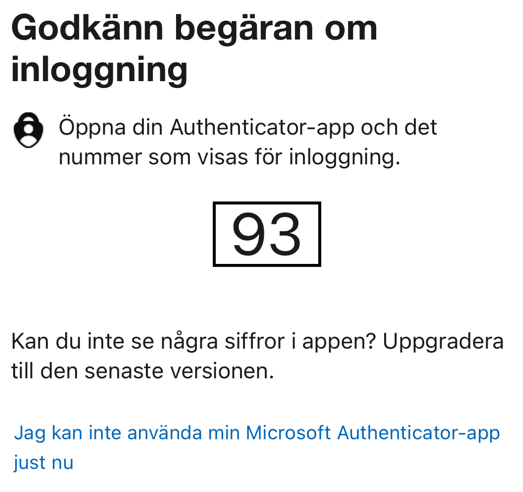
1.8 Remember the numberpair that shows up on your device
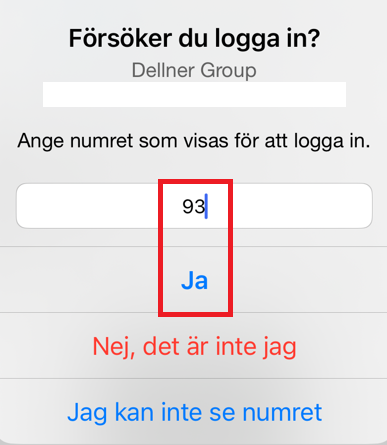
1.9 Type the numberpair on your device, confirm by pressing 'Yes'
To remove your old account, follow the steps below.
2.1 Press the 'Home' menu button in the top left corner
2.2 Press the 'Settings' icon in the bottom left corner

2.3 Select your old Dellner account to enter specific settings for that account
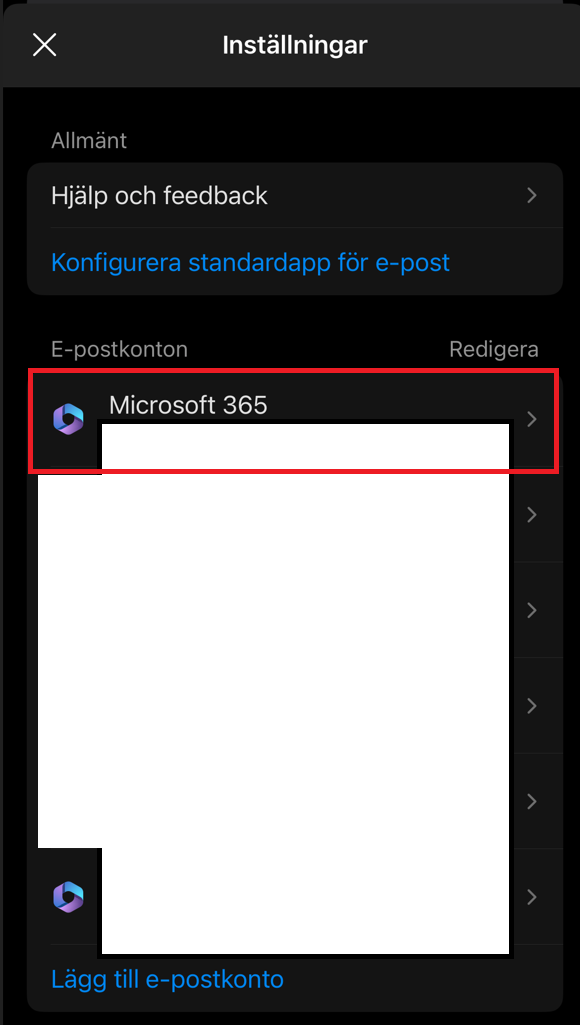
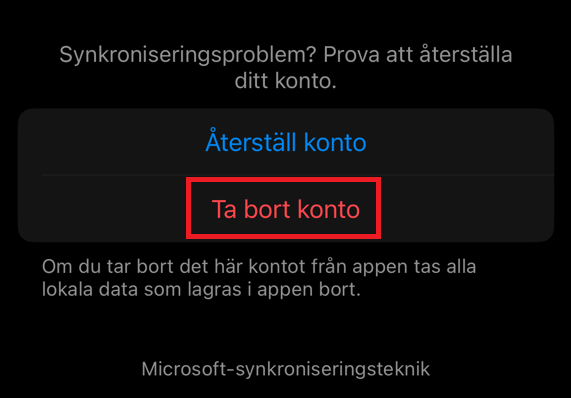
2.4 Scroll down to the bottom of the settings list and choose 'Remove account' (should look more or less the same on Android)