Leftclick the onedrive icon on the taskbar and check that it says 'Your files are synced'.
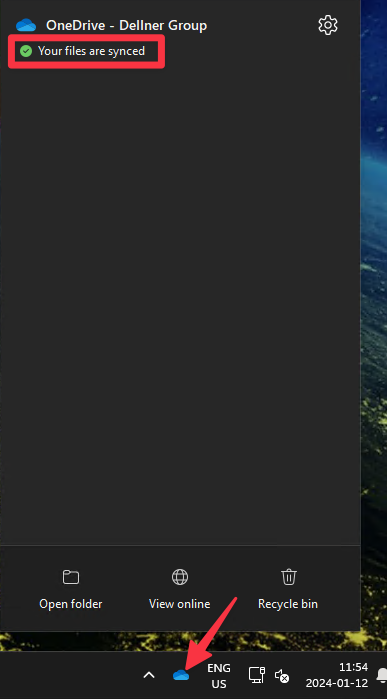
If the onedrive sync agent has errors make sure that these are resolved before the migration starts.
If you need assistant contact your local support.
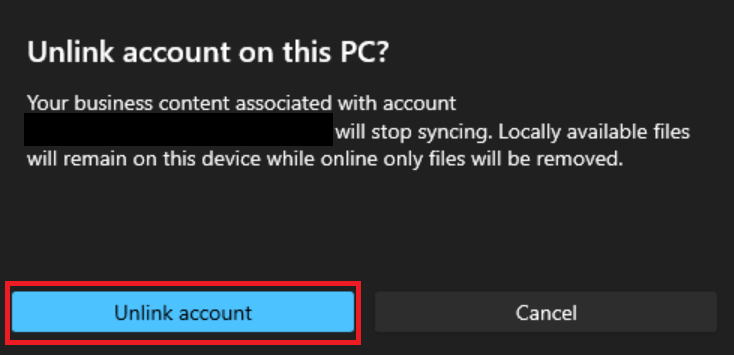
Once you have confirmed all your pending files are syncrhonized you should proceed to unlink your account from your PC by going to OneDrive settings.
1. This is done either through the cogwheel in the OneDrive menu, follwed by the 'Settings' button
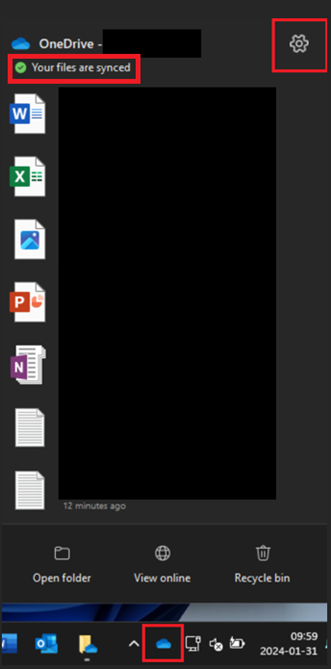
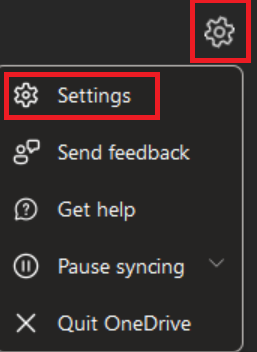
2. Then go to the 'Account' tab and press 'Unlink this PC'
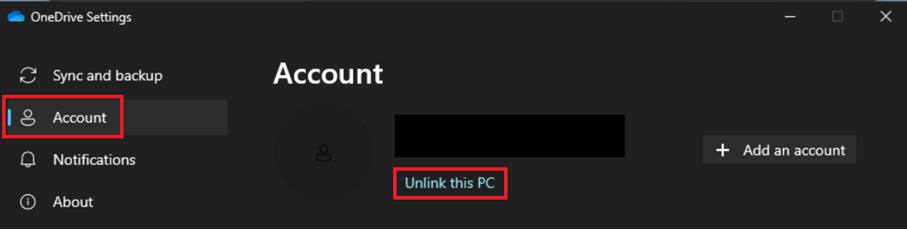
3. Followed by 'Unlink account' (all locally synced files will still be available on your device)
4. After the migration to your new Dellner Group account the new version of your old files will need to be synchronized to your device again, once this is complete you can remove the old versions from your device
5. The old version of the files should be stored under 'C:\Users\%username%\OneDrive - CompanyName'

To save space on your device and to ensure that you don't continue to work in old versions of your files you should make sure to delete the 'Old' folder once you have confirmed that all files have been migrated to your new Dellner Group account and after the new 'OneDrive account' has been configured in the post migration guide.
If you need assistant contact your local support.