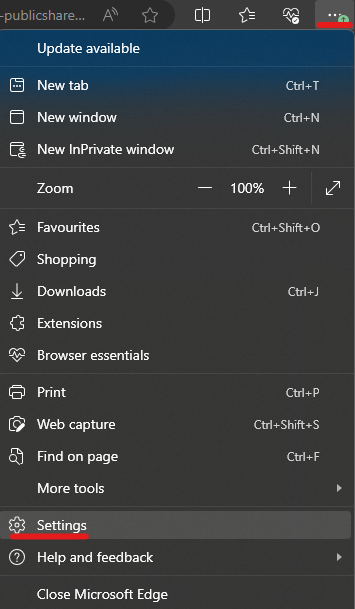
1. Go to settings in Edge
a. Either via triple dots (top right corner) followed by settings (see picture)
2. Press the '+ Add profile' button

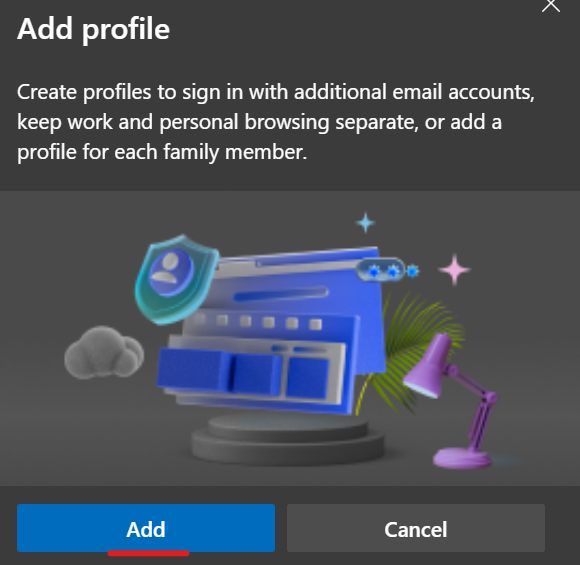
3. Followed by 'Add'
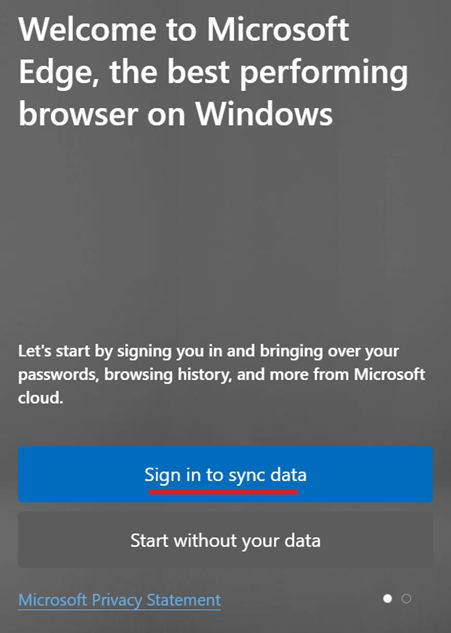
4. Press 'Sign in to sync data'
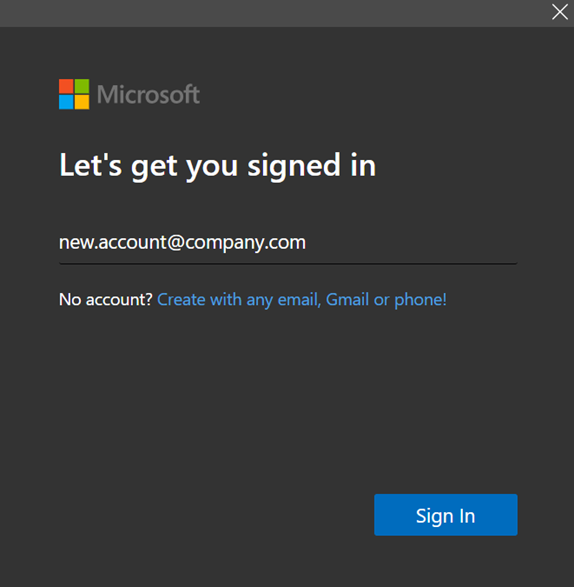
5. Choose your new accountname (should be visible due to earlier steps in Windows 10/11 settings)
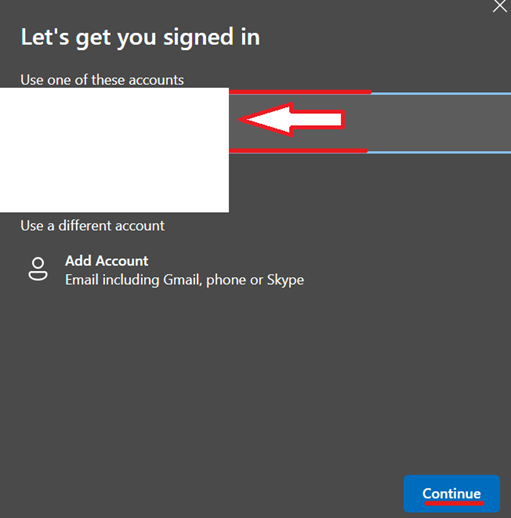
6. 'Situational' If the new account isn't available in the list, choose 'Add account' (shown in the previous step) and login to your new account and complete the sign in flow.
2nd part, restore browser information from your old account to your new Edge profile
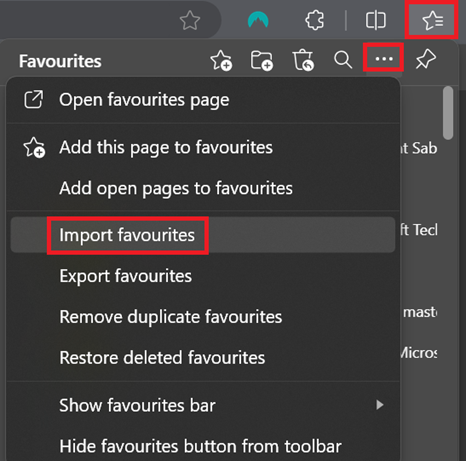
1. Open Edge, press Ctrl+Shift+O (or the Favourite icon directly), followed by the three dots, then 'Import favourites'
2. Go to the section import from other browser, and press 'Choose what to import'

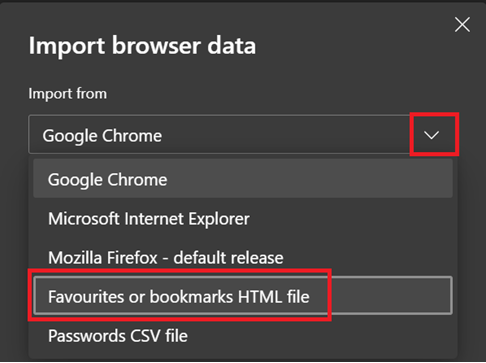
3. Press the drop down menu and choose 'Favourites or bookmarks HTML file'
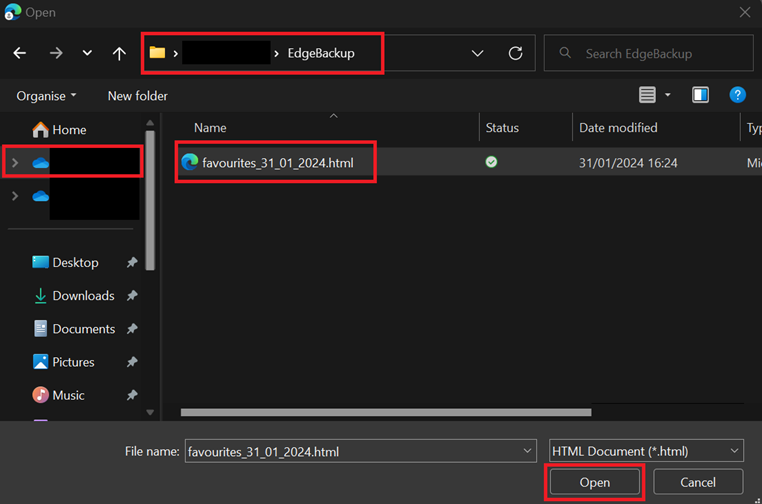
4. Press 'choose file' and search for the file previously exported in the pre migration steps (should be in your OneDrive folder)

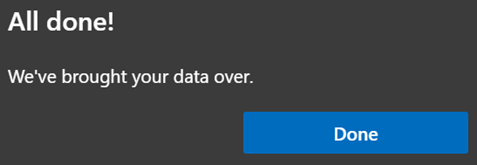
5. Favourites have now been imported
Now to Saved passwords
1. Go to Edge settings
2. Press 'Import browser data' in the middle of the screen

3. Go to the section import from other browser, and press 'Choose what to import'

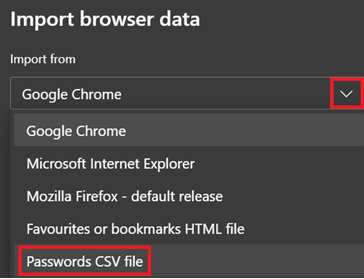
4. Press the drop down menu and choose 'Passwords CSV file'
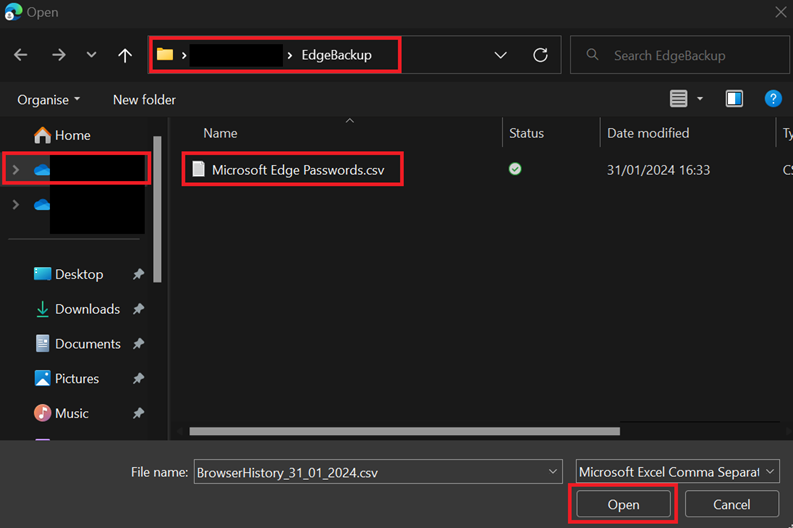
5. Press 'choose file' and search for the file previously exported in the pre migration steps (should be in your OneDrive folder)
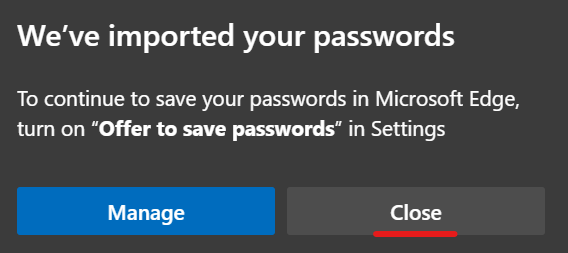
6. Your passwords have now been imported
Remember to delete these files once they have been restored.