2. If you completed the 'add work or school' post migration guide you should be greeted with a 'Welcome to Word' page and be able to 'Continue' as your new Dellner Group user
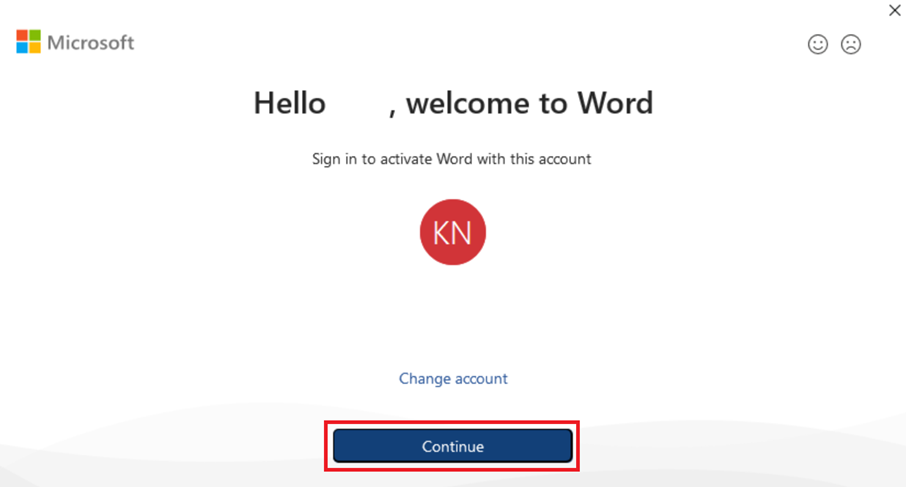
(If you where unable to add your new account you should be able to sign in manually following the steps mentioned below after 4.)
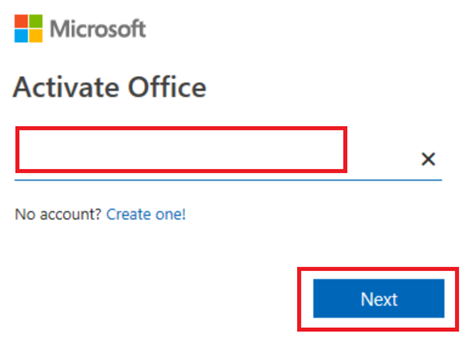
3. Verify your username is correct, if it is, press 'Next'
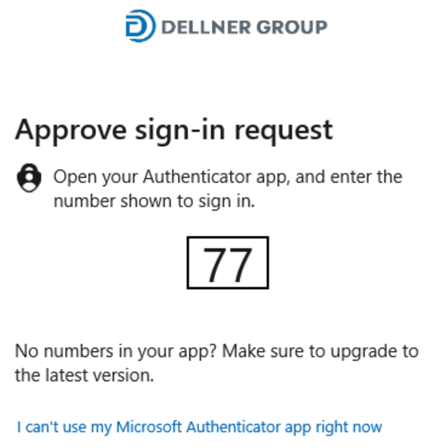
4. Verify yourself with the Authenticator if required (some office locations are excluded, therefore this might not appear for you if you are in office this day)
Follow the steps below 'ONLY' if the above steps didn't work for you.
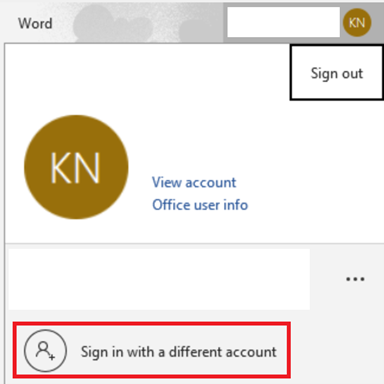
1. Open Word, press the user icon in the top right corner, choose 'Sign in with a different account'
2. Enter your new Dellner Group username
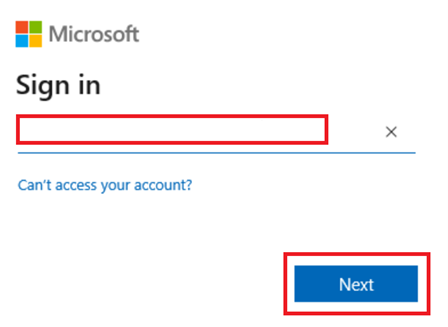
3. Type in your password and press 'Sign in'
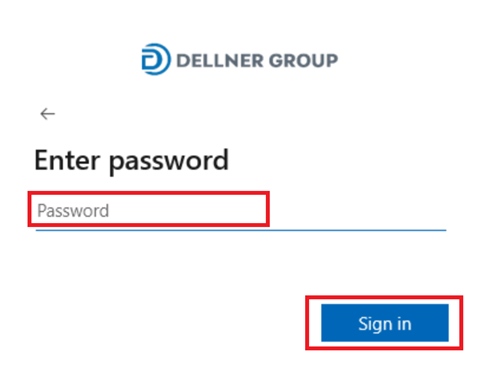
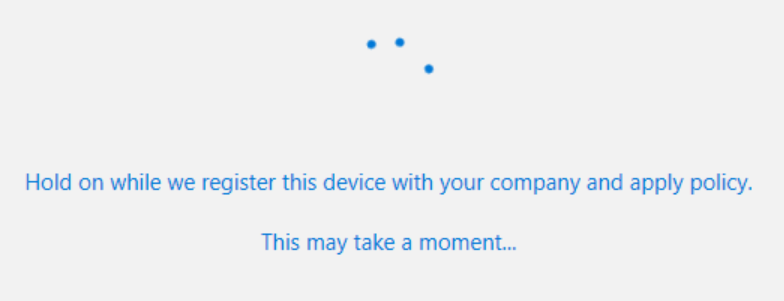
4. If you get a popup asking for device registration, check the box 'Allow my organization to manage my device'
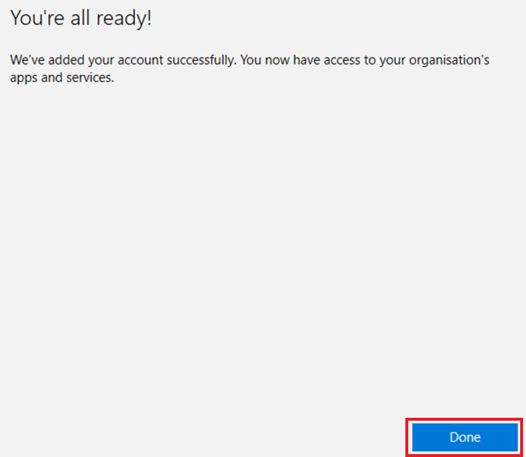
Wait for registration to complete, then press done, and close the settings app
5. Open another office app (example Excel) and verify you are logged in.