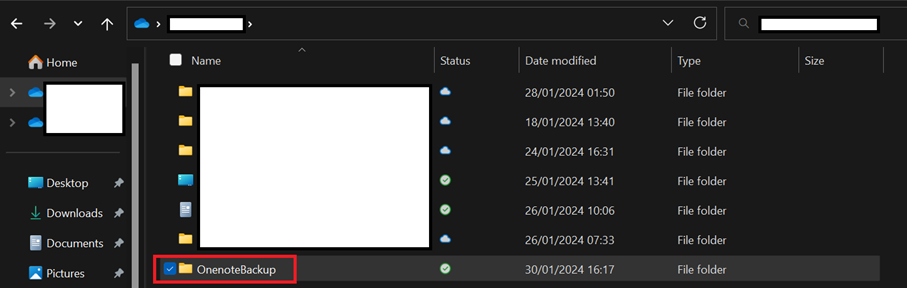
Using onedrive now means that the exported notebook will be migrated to your new onedrive in the 'OnenoteBackup' folder (or whatever you decide to call it) automatically because of the Onedrive migration
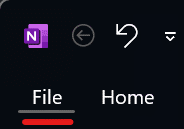
2. Open the Onenote desktop application and press 'File'
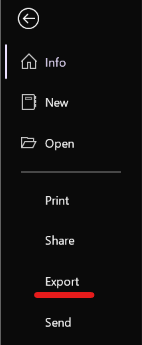
3. Followed by 'Export'
4. Make sure you change the selection from 'Page' to 'Notebook'

5. Select format, choose '*.onepkg' to be able to import the notebook to your Onenote on the Dellner Group account, then press 'Export'

6. Navigate to the location of your choose (chosen in step 1), set a fitting name for the Notebook (or leave as is if you want to keep the name), press 'Save'

7. Your Onenote notebook is now being packaged and exported to a file and then stored in the location of your choice

(8). If you have additional notebooks you want to export you can repeat the steps described on this page