If you added your new Dellner Group account to Windows earlier your sign-in should autocomplete (see picture)

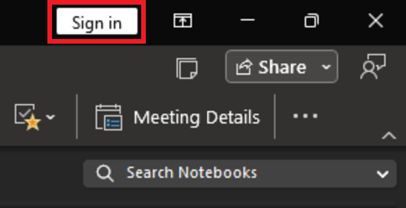
!!! If you had issues adding your account to Windows you might need to logon manually once the OneNote app has fully started, to do this proceed with pressing 'Sign in' in the top right corner
1.2 Open the OneNote desktop application and press 'Sign in' in the top right corner
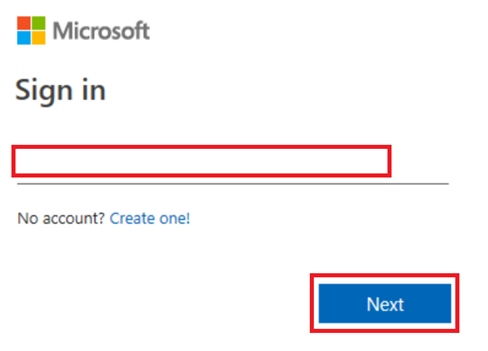
1.3 Type your Dellner Group account username, followed by 'Next'
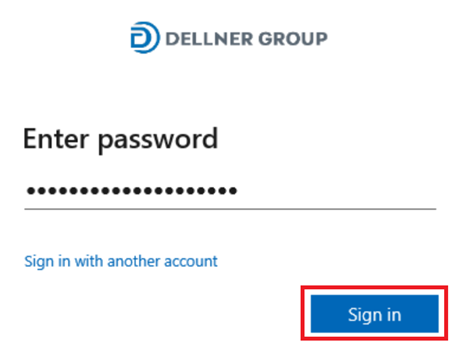
1.4 Enter your password followed by 'Sign-in'
1.5 Verify yourself with MFA if required, otherwise skip this step (some office locations are excluded from this)

1.6 Sign in should now complete
If you have issues signing in to OneNote on your new account, please talk to your IT-Administrator.
Below here follows the instructions for restoring your previously backed up OneNote notebook in to your Dellner Group account
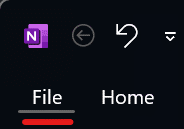
2. Open the OneNote desktop application and press 'File'
3. Followed by 'Open'
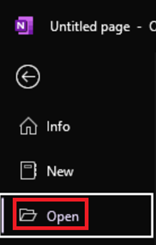
4. Now we will locate the OnenoteBackup file created in the pre migration steps, to do that click on 'Browse'

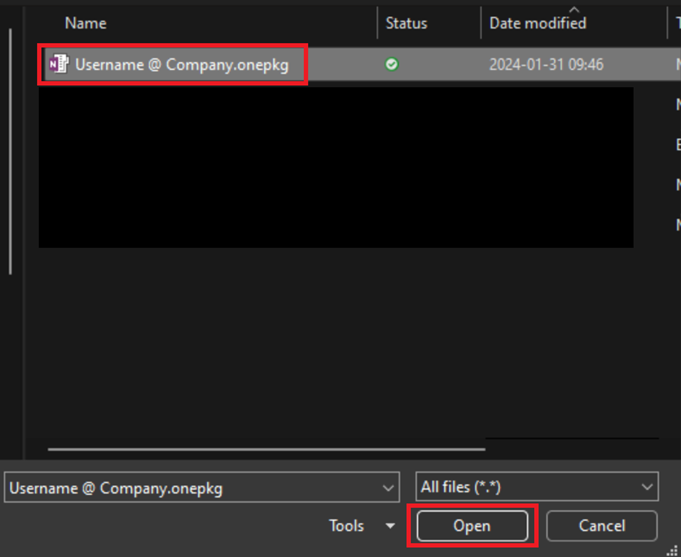
5. Find your Dellner Group OneDrive folder in the file explorer, and find the OnenoteBackup folder that you should have created in the pre migration steps

6. Press the arrow to open the dropdown menu, and choose 'All files'

7. Choose the notebook you want to import, followed by 'Open'
8. Here you have the ability to change name on your notebook if you want, and you can also change the location where it is stored (however it is recommended to leave the save location default), proceed with pressing ‘Create’
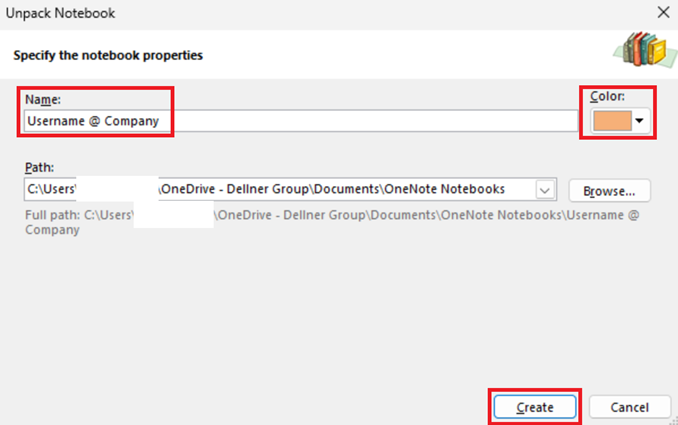
OneNote may now close once the import is complete. Then on the next startup your imported notebook should be listed in the notebooks view.
You can drag and drop to change the arranged order, and you can right click and press 'Close notebooks' on the notebooks you want to close.