Please make sure that you test to login Office Portal and register your account with MFA Device. Normally you use your smart phone. If you don't have a smart phone please contact us and we can look at other solutions.
Make sure to install Microsoft Authenticator on your phone.
iOS Microsoft Authenticator
Android Microsoft Authenticator
When logging into your new account you will be requested to register you MFA device. Follow the instructions that is provided on the webpage.
You can access your new account by open this link Office Portal in your browser with a InPrivate/Incognito window (Edge/Chrome). When prompted use provided username and same password as you login to your PC.
You will be provided with your login details to your new account. Password will be the same as you use to login to your computer.
Below is a flow of the MFA registration procedure.
1. Visit the link portal.office.com and sign-in with your Dellner Group credentials
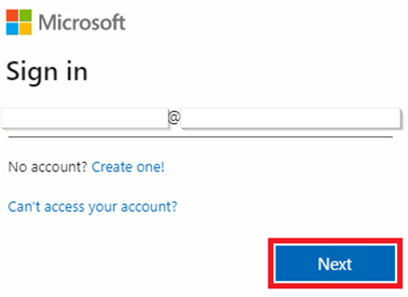
2. Enter your password and press 'Next'
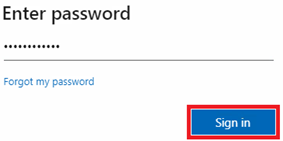
3. On the 'More information is required' page press 'Next'
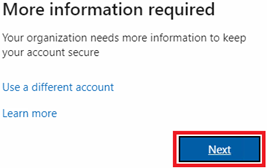
4. Download the Authenticator app as previously mentioned on the top of this page
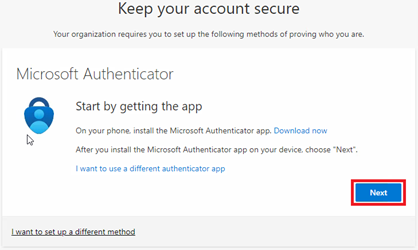
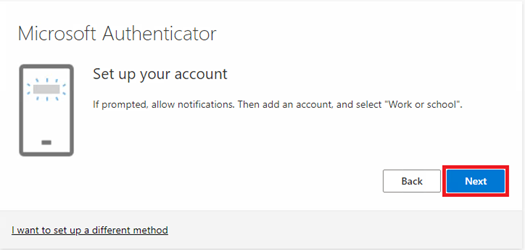
5. This page instructs you how to add an account in the Authenticator App on your device, once the app is open:
a. Add account (+)
b. Work or School account
Once done then press 'Next' on this page
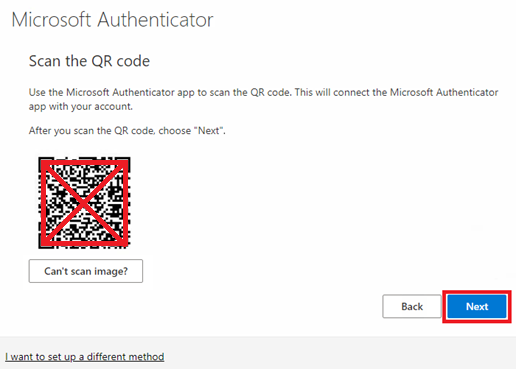
6. Open the 'Authenticator' app and press the 'Three dots' in the top right corner, and choose add a Work or School Account, then Scan a QR-code. Scan the QR-image on your computer with your device, once completed press 'Next'
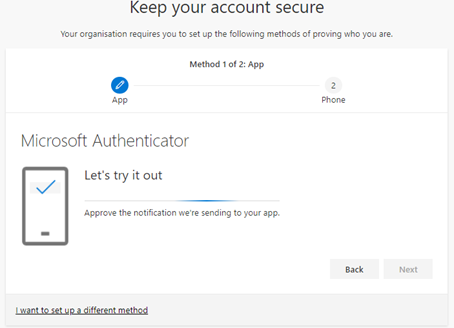
7. Verify the notification or numbermatching pair sent to your Auhtenticator app
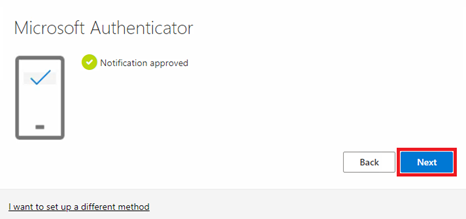
8. Once the notification is approved you can proceed with 'Next' on this page
9. Followed by 'Done'
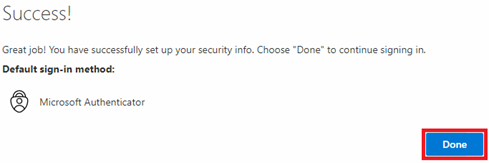
10. You have now secured your Dellner Group account with MFA